
If you’re a JAMB candidate in 2025, one portal controls your entire academic fate — and that’s the eFacility JAMB Portal. Whether you’re checking your UTME result, accepting admission, or printing out your original result slip, everything happens here.
But how exactly do you navigate this all-in-one portal without losing your mind (or your admission)? That’s what this guide is for — to take you from confusion to confidence in under 10 minutes.
Let’s dive right in.
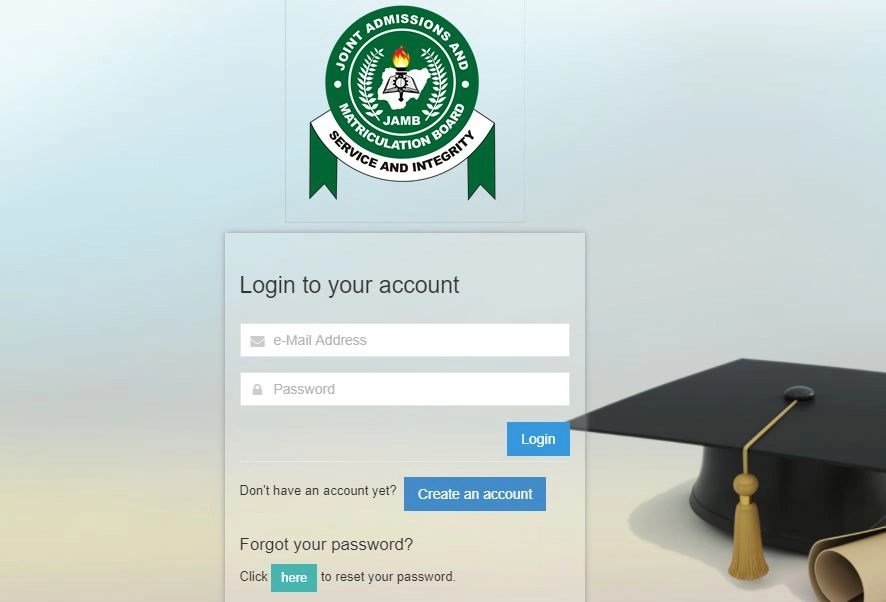
What Is the JAMB eFacility Portal & Why Does It Matter?
The eFacility JAMB Portal is the official online gateway provided by the Joint Admissions and Matriculation Board (JAMB) for candidates to manage all their admission-related tasks. It’s available at https://efacility.jamb.gov.ng.
If you wrote the UTME or registered for Direct Entry (DE), this is where you:
- Check your JAMB result
- Accept or reject admission offers on CAPS
- Upload your O’Level results
- Print your admission letter or original JAMB result slip
- Correct any personal or exam details (change of institution/course)
The portal isn’t just important — it’s absolutely essential.
Setting Up Your eFacility Account
Creating your account on the eFacility portal is the first step toward managing your admission journey. Here’s how to do it:
Eligibility & What You Need
To sign up, you’ll need:
- Your JAMB registration number
- A valid email address (one not already linked to another JAMB profile)
- An active mobile phone number
- NIN (National Identification Number)
How to Create Your Account
- Go to https://efacility.jamb.gov.ng
- Click on Create e-Facility Account/Login
- Enter your details and complete the email verification
- Set a strong password (you’ll use this to log in every time)
- After successful registration, you’ll be redirected to your dashboard
Boom. You’re in.
How to Log In (Desktop & Phone)
Standard Login Flow
- Head to the eFacility login page
- Enter your registered email and password
- Click on Login
- You’ll land on your personal JAMB dashboard
Forgot Password? Here’s the Fix
- Click on “Forgot Password?”
- Input your registered email
- Check your inbox for the reset link
- Set a new password and log in again
Pro tip: Use Google Chrome or Mozilla Firefox for the best performance.
eFacility Dashboard: Every Core Service Explained
Once you’re in, your dashboard looks like a control center. Here’s what each button does:
1. UTME Result Checker
Check your UTME score by clicking on “Check UTME Results”. No scratch card or token needed — just your registration number.
2. CAPS (Central Admission Processing System)
This is where the magic happens. CAPS allows you to:
- Accept or reject admission offers
- Monitor if you’ve been recommended for admission
- Check institutional transfer approvals
3. Print Admission Letter
You’ll need this document during registration at your school of choice. It costs about ₦1,000, payable online.
4. Print Original JAMB Result Slip
This version is accepted at NYSC, embassies, and institutions. Also costs ₦1,000.
5. Change of Institution/Course
Made a mistake during UTME registration? Change your preferred course or institution here. A fee of ₦2,500 applies.
6. Upload O’Level Results
If you didn’t upload your WAEC/NECO results during UTME registration, do it here to avoid missing admission.
7. Regularization (Late Application)
Used for resolving irregularities in admission — like missing JAMB admission letters or unrecognized institutions.
8. Retrieve Lost JAMB Registration Number
Lost your slip? No panic. Use this service to retrieve your JAMB reg number with a small fee.
9. Payment & Official Service Fees
All payments go through Remita or Interswitch. Keep your RRR or Transaction ID safe in case of disputes.
Step-By-Step Tutorials for Popular Tasks
Let’s break down some of the most common things students need to do on the eFacility JAMB Portal.
Check UTME Results
- Log in to your dashboard
- Click on Check UTME Results
- Your score appears immediately — no token needed
Accept Admission on CAPS
- Click on Access My CAPS
- Tap “Admission Status”
- If offered, click Accept or Reject
Print Your Admission Letter
- Select “Print Admission Letter”
- Pay the fee
- Download and print the PDF
Change Course/Institution
- Click “Correction of Data”
- Choose “Change of Course/Institution”
- Follow the instructions and submit
Upload O’Level Results
- Visit a JAMB-approved CBT center (this can’t be done at home)
- Take your original WAEC/NECO result and profile code
- They’ll upload it via their access
Common Login & CAPS Errors — Plus Quick Fixes
Here are the most common headaches JAMB candidates face and how to fix them:
“Invalid Email/Password”
Check for typos or try resetting your password.
CAPS Admission Status Is Blank
Possible reasons:
- School hasn’t uploaded your status yet
- Your O’Level result isn’t uploaded
Fix: Keep checking or visit your school’s admission office.
White Screen/Blank Dashboard
- Happens mostly on mobile data or poor network
- Switch to Wi-Fi or desktop browser
“You Are Not Eligible for This Service”
This usually means you selected the wrong category or tried to access a service not assigned to your profile (e.g. DE instead of UTME).
eFacility Portal FAQs (2025 Edition)
Can I log in with just my JAMB registration number?
No. You need your email and password to access the dashboard.
How much is JAMB change of course?
₦2,500 only, payable online.
Can I use my phone to accept admission on CAPS?
Yes, but use desktop mode in your browser for full features.
Is the eFacility portal open 24/7?
Absolutely. It runs 24/7 — just be sure your internet works fine.
Is it safe to pay directly through the portal?
Yes. All payments are securely processed through Remita or Interswitch.
Pro Tips for a Smooth JAMB eFacility Experience
- Always log out when using café or public systems
- Use Google Chrome for best compatibility
- Bookmark the portal for one-click access: https://efacility.jamb.gov.ng
- Keep your RRR numbers, receipts, and confirmation emails
- Visit a CBT center if you hit a wall — they’re authorized to help
Conclusion
The efacility JAMB portal isn’t just another government website — it’s your personal command center for getting into higher education in Nigeria. From UTME results to accepting your admission offer and printing your letter, everything happens here.
So bookmark it. Master it. And most importantly, don’t wait until the deadline to act on your CAPS or results.
Now, over to you: What task do you want to complete today on the JAMB portal?
Let me know in the comments, or bookmark this guide so you can always come back to it when the admission season gets busy!
Leave a Reply