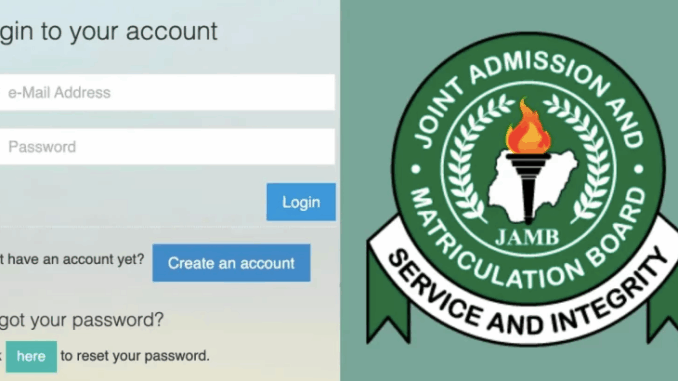
Are you a 2026 UTME or Direct Entry candidate trying to figure out how to access the JAMB portal login? You’re not alone. The JAMB e-Facility portal is the one-stop shop for everything — from checking your UTME result to accepting your admission via JAMB CAPS. In this guide, we’re going to walk you through all the details, step-by-step.
Whether you’re here for the JAMB CAPS login, JAMB result checker portal login, or just want to login using your registration number, this article will save you time and confusion.

What Is the JAMB Portal Login?
The JAMB portal login refers to the official e-Facility portal created by the Joint Admissions and Matriculation Board (JAMB), accessible at https://efacility.jamb.gov.ng. It serves as your dashboard for managing your UTME/DE profile.
Once you log in, you’ll be able to:
- Check UTME and mock exam results
- Access JAMB CAPS to accept or reject admission
- Print admission letters and exam slips
- Apply for data correction, regularization, and more
In short, if you’re a JAMB candidate in 2026, this portal is your academic lifeline.
How to Login to JAMB Portal (2026 Updated Method)
Ready to dive in? Here’s how to log in:
- Visit https://efacility.jamb.gov.ng
- Enter your registered email address and password
- Click the “Login” button
Once logged in, your dashboard will display key options like checking results, printing documents, and accessing JAMB CAPS.
JAMB CAPS Login: Accept or Reject Your Admission Offer
The JAMB CAPS (Central Admission Processing System) is where you can:
- Monitor your admission status
- Accept or reject offers from institutions
- View institution choices and course offers
How to Use JAMB CAPS:
- Login to the JAMB e-Facility portal
- Click “Access my CAPS” under the admission services menu
- Choose “Admission Status”
- Accept or reject your admission offer
This step is mandatory — if you don’t accept your admission on CAPS, your institution may withdraw the offer.
Login to JAMB Portal Using Registration Number
Contrary to popular belief, you can’t directly login using your JAMB registration number alone. Instead, your login credentials are:
- Your email address (used during JAMB profile creation)
- Your password
However, once logged in, you can use your registration number to:
- Check your UTME result
- Verify your admission status
- Reprint your exam slip
So yes, your registration number still plays a big role — just not at the login gate.
How to Access the JAMB Admission Portal
If you’re asking “how do I check my admission?” — you’re looking for the JAMB admission portal, which is part of the e-Facility system.
How to Check Admission on JAMB Portal:
- Login at https://efacility.jamb.gov.ng
- Click “Check Admission Status”
- Select the exam year (e.g., 2026)
- Enter your JAMB registration number
- Click “Check Admission Status”
From there, you’ll see your current admission standing. If you’ve been offered admission, go back to CAPS and accept or reject it.
How to Check JAMB Portal Services
Once inside your dashboard, here’s a snapshot of what you can do:
- Check UTME result
- Reprint exam slips
- Apply for a change of institution/course
- Accept admission on CAPS
- Correct personal data
- Print admission letters
- Apply for regularization
The portal operates 24/7, but it can be slow during peak times, so try to log in during early morning or late-night hours.
Exploring the JAMB e-Facility Portal
Let’s talk about the core of it all — the JAMB e-Facility Portal. Think of this as the umbrella platform where all candidate services are managed. It’s where:
- UTME and Direct Entry candidates register
- Results are uploaded
- Admissions are processed
- Post-registration services are handled
Bookmark this page: https://efacility.jamb.gov.ng — you’ll need it again and again.
JAMB Result Checker Portal Login
To check your result:
- Go to https://efacility.jamb.gov.ng
- Login with your email and password
- Look for “Check UTME Results” on your dashboard
- Enter your JAMB registration number
- Hit “Submit”
Alternatively, you can SMS “RESULT” to 55019 from the phone number linked to your JAMB profile (N50 charge applies).
Login Troubleshooting: Can’t Access Your Portal?
Running into issues while trying to log in? Here are some common problems and fixes:
| Issue | Fix |
|---|---|
| Forgot password | Click “Forgot Password?” to reset via email |
| Wrong email/password combo | Double-check spelling, use browser autofill, or try password reset |
| Portal not loading | Try switching browsers or use “Desktop Site” on your phone |
| OTP not received (SMS) | Make sure your phone number is linked to your JAMB profile |
| Error 500 or blank page | JAMB server might be overloaded — try at off-peak hours |
Still stuck? Visit a JAMB CBT center for assistance.
Conclusion
By now, you should be fully equipped to handle anything related to the JAMB portal login. Whether you’re here to check your results, accept your admission via CAPS, or just explore the JAMB e-facility portal, the process is a lot easier than it seems, once you know what to do.
Pro Tip: Bookmark https://efacility.jamb.gov.ng and keep your login credentials secure.
Still need help? Drop your questions in the comments, or visit the nearest accredited JAMB CBT center.
FAQs About JAMB Portal Login (2026 Edition)
What is the official JAMB portal login URL?
Click here: https://efacility.jamb.gov.ng
Can I login to the JAMB portal using my registration number?
Not directly. You must login with your email and password, then use your registration number within the dashboard.
What is the JAMB CAPS login for?
To accept/reject admission offers, monitor admission status, and view course updates.
How can I check my JAMB result?
Login to your e-Facility dashboard or send “RESULT” to 55019.
Is the JAMB admission portal the same as the main portal?
Yes — it’s part of the JAMB e-Facility platform.
How do I reset my JAMB portal password?
Click “Forgot Password” on the login page. Instructions will be sent to your email.
Leave a Reply