So, you’ve written your JAMB, survived the tension of the results, and now the big question is ringing in your ears — Have I been admitted?
If you’ve found yourself staring at your phone, typing “How to check admission on JAMB CAPS,” welcome to the club. It’s a question nearly every Nigerian student asks once the UTME (Unified Tertiary Matriculation Examination) season wraps up. And you’re in luck — this guide will walk you through the process, like a tech-savvy cousin who’s been through it all.
Let’s make sense of this CAPS drama together and find out how to check your JAMB admission status.
What is JAMB CAPS and Why Should You Care?
First things first — CAPS isn’t some random acronym that means “Capricorn Season” or “Captain’s Appointments.” Nope. CAPS stands for Central Admissions Processing System.
In simple terms, JAMB CAPS is where your real admission status lives. It’s the official gateway where tertiary institutions submit names of successful candidates for JAMB’s approval. If you’re hoping to get into a Nigerian university, polytechnic, college of education, or even a monotechnic, CAPS is the guy calling the shots.
Before, you’d have to wait for some mysterious list to drop in your school or refresh your JAMB result page endlessly. Now? Everything happens on CAPS. That’s why you should care — it’s your digital admission list that syncs your destiny.
Read Also: JAMB CAPS Admission Status: How to Check Yours Like a Pro
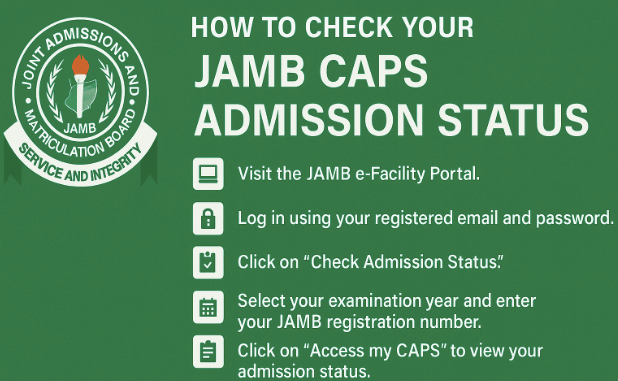
Step-by-Step Guide: How to Check Admission on JAMB CAPS
Now, let’s get down to business. Here’s exactly how to check your admission status on JAMB CAPS without sweating.
Step 1: Visit the JAMB E-facility Portal
Open your browser and head straight to the JAMB portal: efacility.jamb.gov.ng.
This is the official portal, so don’t fall for fake websites that promise admission miracle services. If it doesn’t start with “efacility.jamb,” it’s probably a scam.
Step 2: Login With Your JAMB Details
You’ll need to log in using the email address and password you used during JAMB registration. If you’ve forgotten your password, take a deep breath and click on the Reset Password link. Follow the instructions to recover it.
Pro tip: Don’t ask your cousin to help you register for JAMB and then forget what he used. Always keep your login details safe.
Step 3: Click on “Check Admission Status”
Once logged in, look for a tab that says Check Admission Status. Click it like your future depends on it. Because, well, it kinda does.
Step 4: Select Your Exam Year and Enter Your JAMB Registration Number
You’ll be asked to enter your JAMB year (the year you took the UTME) and your registration number. Make sure you type it correctly. No one likes typos at a time like this.
Step 5: Click on “Access my CAPS”
This is where the magic happens. You’ll see a button that says Access my CAPS. Click it. You’ll be redirected to the CAPS dashboard, where your admission status will be displayed.
Step 6: View Your Admission Status
On the left-hand side of the page, you’ll see options like Admission Status, O’Level, Marketplace, and so on. Click on Admission Status.
If you’re lucky, this is where you’ll see one of three things:
- “Not Admitted”: Okay, don’t panic. This just means you haven’t been offered admission yet. Keep checking.
- “Admission in Progress”: That’s JAMB-speak for “We’re still considering you. Don’t give up yet.”
- “Admitted”: Congratulations! The angels have sung. It’s time to accept or reject the offer.
How to Accept or Reject Admission on JAMB CAPS
Yes, JAMB actually gives you the power to either accept or reject your admission. It’s like a game show, but without the cash prize. If you’ve been admitted and you’re happy with the offer, click Accept. If you want to wait for another offer (maybe your dream course or institution), you can click Reject.
Important note: Once you accept, you can’t go back. It’s like swiping right on admission Tinder — choose wisely.
Also, after accepting, don’t forget to print your JAMB Admission Letter. That’s your proof of admission and you’ll need it during clearance and registration.
How to Check JAMB CAPS Admission Status on Phone
Using your phone? No wahala.
Some people get stuck here because the CAPS page doesn’t display properly on mobile. The trick is to switch your browser to desktop mode. Here’s how:
- Open Chrome or Firefox
- Go to efacility.jamb.gov.ng and login
- Once you’re logged in, tap the menu icon (usually three dots in the corner)
- Tap “Desktop site” to reload the page in desktop mode
- Then proceed with the steps above
Now your phone will display the full CAPS dashboard just like a laptop would. Easy.
Common Problems and How to Fix Them
Alright, it’s not always smooth sailing. Here are some common hiccups and how to deal with them:
CAPS Not Opening
If the CAPS page refuses to load, it could be:
- Poor internet connection
- You’re not in desktop mode
- JAMB’s server is down (which happens more often than you’d like)
Solution: Refresh. Switch browsers. Or try again in a few hours.
“You are not eligible to use this service”
This usually means your institution hasn’t sent your name to JAMB yet. Sit tight.
Admission in Progress for Weeks
Yes, JAMB can keep you hanging like a bad situationship. But patience is key. Schools release admission in batches, and JAMB updates CAPS gradually.
Wrong Course or Institution Showing
This might be due to a change by your school, or a data entry issue. Reach out to your school or JAMB office to get it corrected.
What To Do After Accepting Admission
If you’ve accepted your offer on CAPS, pop some chin-chin, but don’t relax just yet.
- Print your JAMB Admission Letter
This document is golden. You’ll need it for clearance, registration, NYSC, and even job applications in the future. - Head to Your School’s Portal
Confirm that your name is on the school’s list and follow their instructions for acceptance fee payment, clearance, and resumption. - Prepare for Life on Campus
Whether it’s uni, poly, or college of education, start prepping mentally and materially. That means shopping, brushing up on your independence skills, and Googling how to cook noodles in 20 different ways.
FAQs About JAMB CAPS
Is JAMB CAPS the same as the JAMB admission portal?
Not quite. The CAPS section is more detailed and interactive. It gives you real-time updates on your admission process.
Can I accept admission from two schools?
Nope. Once you accept one, the others become void. One candidate, one school. No double dating.
How long does it take for admission to show on CAPS?
It varies. Some see it within weeks, others wait for months. Keep checking regularly.
Can I still change my course after accepting admission?
Only if your school allows it. JAMB CAPS doesn’t handle that directly — your institution does.
Conclusion
And that, my friend, is the complete, no-stress guide on how to check admission on JAMB CAPS. From logging in to accepting that sweet offer, you’re now equipped to navigate the CAPS jungle like a pro.
Remember: Don’t panic if you see “Not Admitted.” Admission is a process, not an event. Keep checking, stay positive, and be ready to act when your name finally drops.
If you found this guide helpful, share it with your fellow JAMB warriors. Or drop your questions below — help is just a scroll away.
Good luck and congrats in advance.
Leave a Reply